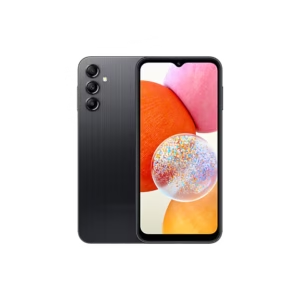
Odin3 v3.14.4
Secure high-speed verified download from Wp Bazzar servers.
Key FeaturesFile Information
File Status
Premium Access
- What is Samsung Flashing?
- Important Requirements Before Flashing
- 1. Samsung USB Drivers
- 2. Odin Flash Tool
- 3. Correct Firmware File
- 4. Backup Your Data
- 5. Charge Your Phone
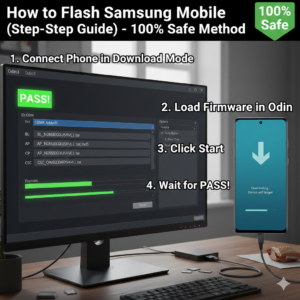
- Step-by-Step Process to Flash Samsung Mobile
- Step 1: Install Samsung Drivers
- Step 2: Extract Firmware Files
- Step 3: Enter Download Mode
- Step 4: Open Odin Tool
- Step 5: Load Firmware Files in Odin
- Step 6: Start Flashing
- Step 7: Wait for PASS Message
- Common Flashing Errors and Solutions
- Odin Stuck at Setup Connection
- FAIL Error in Odin
- Phone Stuck After Flashing
- Benefits of Flashing Samsung Phones
- Risks of Flashing
- Frequently Asked Questions (FAQs)
- Is flashing Samsung mobile safe?
- Will flashing delete data?
- Can I flash Samsung without PC?
- How long does flashing take?
- Final Words
- SEO Keywords
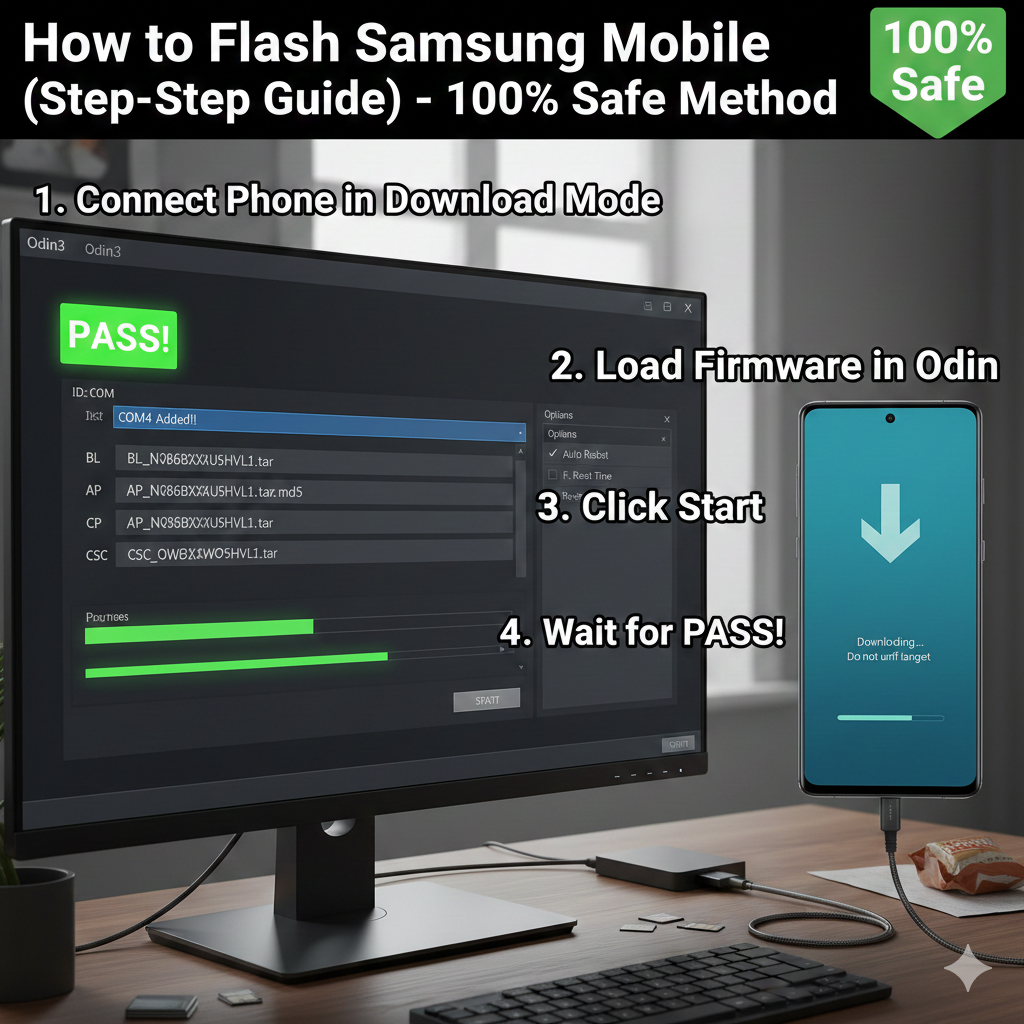
Flashing a Samsung mobile means installing or reinstalling the official firmware (stock ROM) on your device. It is the best solution to fix software issues like bootloop, hanging, virus problems, and system errors.
In this complete guide, you will learn how to safely flash a Samsung phone using the Odin Tool with easy step-by-step instructions.
What is Samsung Flashing?
Samsung flashing is the process of installing official firmware on a Samsung smartphone using a computer. It replaces the existing Android system with a fresh and clean software version.
Flashing helps fix many common problems such as:
• Phone stuck on logo
• Software crash or freezing
• Virus or malware infection
• Pattern lock or system error
• Slow performance
• Failed software update
Important Requirements Before Flashing
Before starting the flashing process, make sure you prepare the following:
1. Samsung USB Drivers
Install Samsung USB drivers on your computer so the device connects properly.
2. Odin Flash Tool
Odin is the official flashing software used for Samsung devices.
3. Correct Firmware File
Download firmware according to:
- Exact model number
- Region (CSC)
- Android version
4. Backup Your Data
Flashing will erase all data. Always take a full backup before starting.
5. Charge Your Phone
Keep at least 50% battery to avoid interruption.
Step-by-Step Process to Flash Samsung Mobile
Follow these steps carefully for safe flashing.
Step 1: Install Samsung Drivers
Download and install Samsung USB drivers on your computer.
Restart your PC after installation.
Step 2: Extract Firmware Files
After downloading firmware:
Extract the ZIP file.
You will see these files:
• BL – Bootloader
• AP – Main system file
• CP – Modem file
• CSC – Country settings
Step 3: Enter Download Mode
Turn OFF your Samsung phone.
Then press:
New Models:
Volume Down + Power + Connect USB Cable
Old Models:
Volume Down + Home + Power
Press Volume Up to continue.
Step 4: Open Odin Tool
Run Odin Tool as Administrator.
Connect your phone using a USB cable.
You will see the “Added” message in Odin.
Step 5: Load Firmware Files in Odin
Add firmware files to their correct sections:
BL → BL file
AP → AP file
CP → CP file
CSC → CSC file
Use HOME_CSC if you want to keep your data.
Step 6: Start Flashing
Click the START button.
The flashing process will begin.
It usually takes 5 to 10 minutes.
Do NOT disconnect the cable.
Step 7: Wait for PASS Message
Once flashing is complete:
Odin will show PASS.
Your phone will reboot automatically.
Your Samsung device is now successfully flashed.
Common Flashing Errors and Solutions
Odin Stuck at Setup Connection
Fix: Reinstall USB drivers and change USB port.
FAIL Error in Odin
Fix: Use correct firmware and original USB cable.
Phone Stuck After Flashing
Fix: Perform factory reset from recovery mode.
Benefits of Flashing Samsung Phones
• Fixes software bugs and errors
• Removes bootloop problems
• Improves phone performance
• Updates Android version
• Removes malware and viruses
Risks of Flashing
Flashing is safe when done correctly, but using the wrong firmware can cause:
• Data loss
• Soft brick issues
• Warranty void
Always use official firmware files.
Frequently Asked Questions (FAQs)
Is flashing Samsung mobile safe?
Yes, it is completely safe when using official firmware and correct steps.
Will flashing delete data?
Yes, flashing usually erases all data unless you use HOME_CSC file.
Can I flash Samsung without PC?
No, Samsung flashing requires Odin tool on a computer.
How long does flashing take?
Normally between 5 to 10 minutes.
Final Words
Flashing a Samsung mobile is the best solution for fixing software problems, removing system errors, and restoring phone performance. By following the above step-by-step guide carefully, you can safely flash your Samsung device at home.
Always download the correct firmware for your exact model number and keep a backup before starting the flashing process.
SEO Keywords
how to flash samsung mobile
samsung flashing guide
samsung odin tool tutorial
install samsung firmware
fix samsung bootloop
samsung stock rom flashing