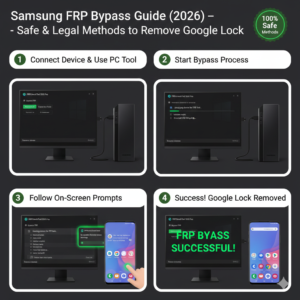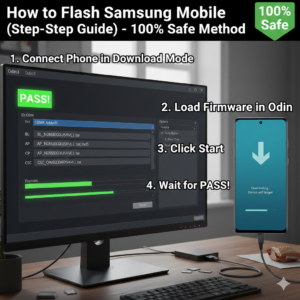

Flashing an MTK based CPU device is a common solution for fixing software problems such as boot loops, hanging issues, dead phones, virus infections, or system crashes. Devices powered by MediaTek processors are widely used across many smartphone brands, making firmware flashing an essential skill for technicians and advanced users.
MTK flashing refers to reinstalling or repairing the device’s operating system using specialized tools. Unlike OTA updates, flashing completely rewrites the firmware, which helps resolve deep software-level issues that normal resets cannot fix.
Understanding MTK Firmware Flashing
MediaTek devices use a scatter-based flashing system. The scatter file is a critical component that contains partition information of the device. Without it, the flashing tool cannot properly write firmware to the correct memory sections.
To flash an MTK device safely, you typically need:
• Correct stock firmware
• Scatter file
• USB drivers
• Flashing tool (commonly SP Flash Tool)
• DA (Download Agent) file (if required)
• Good quality USB cable
Using the wrong firmware can permanently damage the device, so always verify the exact model number before proceeding.
Step-by-Step MTK Flashing Process
1. Install MTK USB Drivers
Begin by installing MediaTek USB VCOM drivers on your computer. Without drivers, the flashing tool will not detect the device.
2. Download Correct Firmware
Download the official firmware package specific to your device model. Extract the files to a folder.
3. Launch SP Flash Tool
Open the flashing tool and load the scatter file from the firmware folder. The tool will automatically populate partitions.
4. Select Flashing Mode
Choose the appropriate mode:
• Download Only – Safest option for software repair
• Firmware Upgrade – Rewrites partitions
• Format + Download – Use cautiously (risk of IMEI loss)
For general repairs, “Download Only” is recommended.
5. Connect the Device
Power off the phone completely. Connect it via USB while pressing the required key (varies by device). The flashing tool should detect the device instantly.
6. Flashing Begins
Once detected, flashing starts automatically. Do not disconnect the device during this process.
7. Completion & Boot
After flashing finishes, disconnect the device and power it on. The first boot may take several minutes.
Common Problems During MTK Flashing
Device Not Detected
Usually caused by missing drivers or faulty cable.
BROM Errors
Often due to incompatible DA files or firmware mismatch.
Stuck on Preloader
May indicate hardware issues or corrupted firmware.
Dead Phone After Flashing
Typically linked to incorrect preloader selection.
Benefits of Flashing MTK Devices
Firmware flashing is highly effective for:
• Fixing boot loop problems
• Removing malware
• Resolving system crashes
• Restoring dead devices
• Downgrading software versions
• Repairing corrupted OS
For repair professionals, MTK flashing is one of the most frequently used solutions in mobile servicing.
Safety Tips for Successful Flashing
Always back up important data when possible. Ensure the battery has sufficient charge. Never interrupt the flashing process. Use verified firmware sources. Avoid unnecessary formatting unless absolutely required.
Final Thoughts
Flashing an MTK based CPU device is a powerful repair technique that can restore most software-damaged phones. With the correct firmware, drivers, and tools, the process is reliable and efficient. Whether you are a technician or an advanced user, mastering MediaTek firmware flashing is essential for handling modern Android device repairs.